How to Get Rid of a Pillow on a Bed in Bloxburg the Right Way — Separate vs. Built-In Pillows Explained
Quick Answer
Enter Build Mode, click the pillow, then use the Sell/Delete Tool to remove it. That works for a separate decoration pillow placed on a bed. If the pillow is built into the bed itself, you cannot click it separately, so sell or replace the whole bed, or cover the pillow and rebuild the look around it.
That one difference explains most of the confusion around this question. In Welcome to Bloxburg, pillow can mean two very different things. One is a decoration you placed yourself. The other is part of the bed model. The first can be deleted in a few seconds. The second has no separate delete button, and clicking it will only select the bed.
First, Work Out Which Pillow You Have
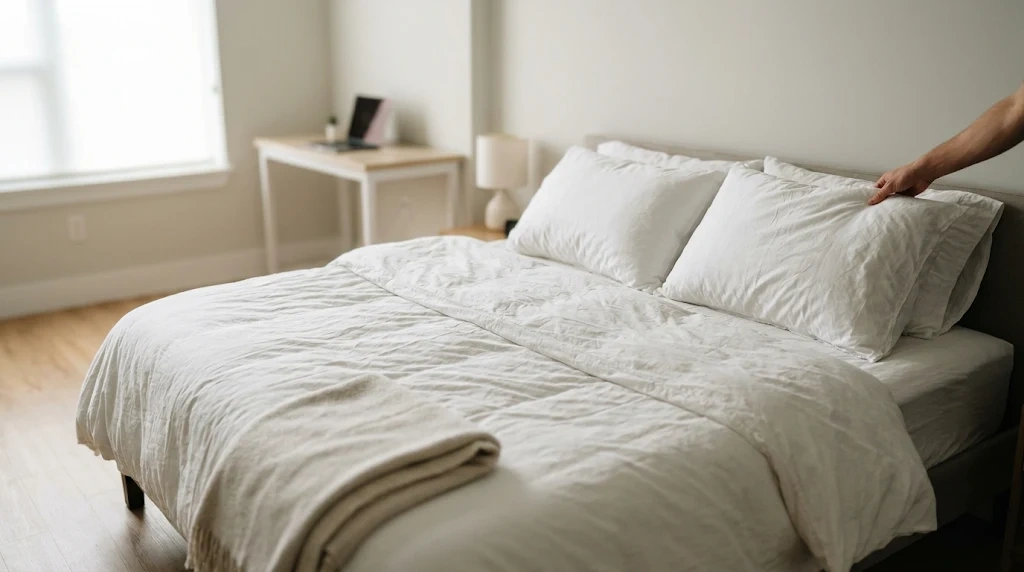
Open Build Mode and click directly on the pillow. If only the pillow lights up, you have a separate decoration pillow. If the whole bed lights up, the pillow is built into that bed.
Separate pillows came from Decorations, then Pillows. They were added in version 0.11.1, and they include the Basic Rectangular, Comfy, Trimmed Rectangular, and Wide Rectangular pillows. They can be moved with the Transform Tool without Transform Plus, and resized with the Scale Tool.
A built-in pillow arrives with the bed and stays with it unless you change the bed. Some beds show one wide pillow, some show two, and some have a flatter shape. Its colour may match the bedding, which makes it harder to tell at a glance whether it is separate or built in.
| Check | Separate pillow | Built-in pillow |
|---|---|---|
| Clicking it | Only the pillow is selected | The whole bed is selected |
| Where it came from | Decorations, then Pillows | Part of the bed item |
| Move it alone? | Yes, with the Transform Tool | No, only with the bed |
| Delete it alone? | Yes, sell or delete it | No, sell or replace the bed |
If you are still unsure, zoom in and click the edge of the pillow rather than the centre. A separate pillow often has a clear edge where it meets the mattress. A built-in pillow tends to blend into the headboard or mattress, and the selection outline will jump to the bed.
How to Remove a Separate Pillow From a Bed
This is the straightforward case. Do not try it in normal play mode, because items on a plot cannot be picked up or deleted from live mode.
- Enter Build Mode. Click the hammer button at the bottom right, or use your mailbox. You need Roommate or Co-Owner permission on someone else’s plot.
- Move the camera close. Zoom in so the pillow is visible, not hidden behind a headboard, blanket, or another pillow.
- Click the pillow. Check that only that pillow is highlighted. If the bed is highlighted instead, you have a built-in pillow.
- Press G for the Sell/Delete Tool, or click the trash icon. The Welcome to Bloxburg Wiki’s Build Mode guide lists G as the hotkey. On mobile, use the trash or sell control.
- Click the pillow again. Confirm the sell prompt if one appears.
- Check from another angle. Look for a second pillow hiding behind the first, then exit Build Mode. Your change saves automatically.
If you placed the pillow in the same build session, press Ctrl + Z on PC to undo it. That removes the placement and refunds the full amount. Once you leave the session, that simple undo may no longer work.
Tip
If you only want the pillow out of the way for now, move it first instead of deleting it. Use the Transform Tool to place it on a chair, shelf, or the floor nearby. You can then keep it, sell it, or put it back without paying to buy it again.
How to Remove the Built-In Pillow That Comes With the Bed
There is no hidden setting that deletes only the built-in pillow. Bloxburg treats it as part of the bed, like the mattress, frame, and headboard. That is why the Sell/Delete Tool selects the whole bed when you click the pillow area.
Sell the bed and buy a different one
Select the bed in Build Mode and sell it, then choose a bed with a flatter head end. Preview it from the side as well as from above, because a bed that looks pillow-free from the front can still show a raised pillow from the side. You will not get the full price back on a bed from an earlier session.
Replace the bed with a custom bed
Many builders replace the ready-made bed with a custom one. Place a mattress or a low basic shape as the base, add a headboard, then add only the pillows you want from Decorations, then Pillows. Each one is separate, so you can delete any later. Test it in normal mode, to make sure your character can still sleep on it.
Keep the bed and change how the pillow looks
If you like the bed, try repainting it first. Open the Paint Tool with F on PC and choose a colour that makes the pillow blend into the bedding. You can also cover it with a blanket from Decorations, then Miscellaneous, or place your own pillows in front of it. This does not remove it, but it can hide most of it.
How to Hide or Cover a Pillow You Cannot Delete
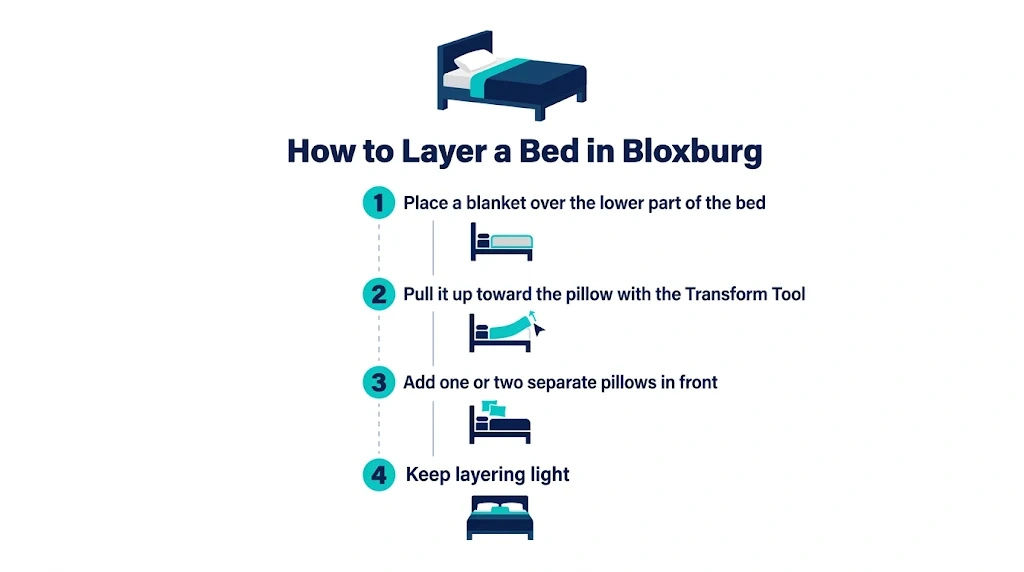
Hiding is often the fastest fix when selling the bed feels wasteful. It works best when the pillow is small, flat, or close in colour to the bedding. Place a blanket over the lower part of the bed and pull it up toward the pillow with the Transform Tool, then add one or two separate pillows in front of the built-in one.
Keep layering light. Too many overlapping pillows make the bed look cluttered and hard to select later. Real pillows follow a similar sizing logic, even though the game does not. If you are also choosing pillows for a real bedroom, how big a standard bed pillow is is a useful check before you buy.
What to Do If You Cannot Click the Pillow
Most players who say they cannot delete a pillow are clicking the wrong layer. The pillow may be behind a blanket, under another pillow, or so close to the headboard that the game keeps selecting the bed instead.
- Make sure you are in Build Mode. In normal play mode, clicking furniture does not open delete controls.
- Zoom in and change the angle. Use I and O to zoom, and Q and E to rotate. A pillow hidden from the front is often easy to click from the side or above.
- Move the items on top first. Move a blanket or another pillow away, then click the pillow underneath.
- Try the Sell/Delete Tool directly. Press G on PC, then click the pillow.
- Check your permissions. On someone else’s plot, you need Roommate or Co-Owner permission.
- Re-enter Build Mode. Lag or a stuck session can make clicks feel unresponsive. On mobile, tap the pillow edge and wait for the selection outline.
- Move the bed away from the wall. A bed pushed tight against a wall can be hard to select. Move it out, remove the pillow, then move it back.
If none of these checks lets you select the pillow alone, treat it as a built-in pillow. The fix is to sell, replace, or cover the bed, not to keep clicking the same spot.
Warning
Do not use the Bulldoze Tool to remove one pillow. Bulldozing sells everything on your plot and cannot be undone. It is meant for clearing a whole plot, not for fixing a single bed.
Sell, Delete, or Store? What Happens to Your Money
Selling an item in Build Mode usually returns 70% of its original price. Selling an item placed in the same build session returns 95%. Undoing a placement in that session returns 100%. That is why a pillow you just placed is cheaper to fix than one you placed days ago.
Deleting is different from selling: delete removes the item with no refund. Use sell when you want money back. Blockbux and seasonal items are different again, because the Build Mode inventory stores them, and a seasonal pillow may not return until the event does.
Before you sell a whole bed, add up the cost. The refund may be far less than a replacement bed, especially if the original bed was expensive. In that case, covering or repainting it is usually the better choice.
Common Mistakes That Waste Money or Time
First, do not sell the whole bed when only a separate pillow needed to go. Click the pillow first and check the selection outline. Second, do not assume the game is broken when a built-in pillow will not select on its own. It is part of the bed, so the fix is different.
Third, check prices before you delete. A Basic Rectangular Pillow costs $125, a Comfy Pillow costs $80, a Trimmed Rectangular Pillow costs $165, and a Wide Rectangular Pillow costs $245, according to the Decorations / Pillows list.
Fourth, remove the old pillow before you place a new one. Placing new pillows first creates a stack that is hard to select. Unlike a real pillow, a Bloxburg pillow never needs washing or drying. For the real-life version, how to wash a bed pillow and how to dry a bed pillow cover the steps by fill type.
Frequently Asked Questions
Can you delete just the pillow on a Bloxburg bed?
Yes, if it is a separate decoration pillow. Enter Build Mode, click only the pillow, then use the Sell/Delete Tool. If clicking it selects the whole bed, it is built in and cannot be deleted on its own.
Why can’t I click the pillow on my Bloxburg bed?
It is most likely built into the bed, so the game selects the bed instead. It may also be hidden under a blanket or another pillow, or you may be in play mode, not Build Mode. Zoom in, move the top items away, and try G on PC.
How do I remove the default pillows in Bloxburg?
There is no button for only the default pillow. Sell the bed and choose another one, build a custom bed with separate pillows, or cover the built-in pillow with a blanket and your own pillows.
Do I get money back when I delete a pillow in Bloxburg?
Selling usually returns 70%, or 95% in the same build session. Undoing a placement in that session returns 100%. Deleting without selling gives no refund, so use sell when you want money back.
Can I remove a pillow in Bloxburg on mobile?
Yes. Enter Build Mode, tap the pillow, then use the trash or sell control. Zoom in and tap the pillow edge, because small items are hard to tap accurately. If the whole bed is selected, the pillow is built in.
Will removing the pillow stop my Bloxburg bed from working?
No. Removing a separate pillow does not stop the bed from working, and your character can still sleep and regain energy. If you sell the whole bed, you will need a replacement before you can sleep there again.
Conclusion
Getting rid of a pillow on a bed in Bloxburg starts with one check: click the pillow in Build Mode and see what is selected. If only the pillow lights up, sell or delete it with the Sell/Delete Tool. If the whole bed lights up, the pillow is built in, so sell or replace the bed, build a custom bed, or cover the pillow until the look is right. Check the refund before you sell an expensive bed, and avoid Bulldoze for a single item.

I’m a home decor enthusiast who loves discovering beautiful room ideas, creative DIY projects, and Pinterest-worthy decorating inspiration. At DecorMinty, I share simple tips, fresh trends, and practical ideas to help you create a home you’ll truly love—one room at a time.